
Step 1
Open your Troops screen
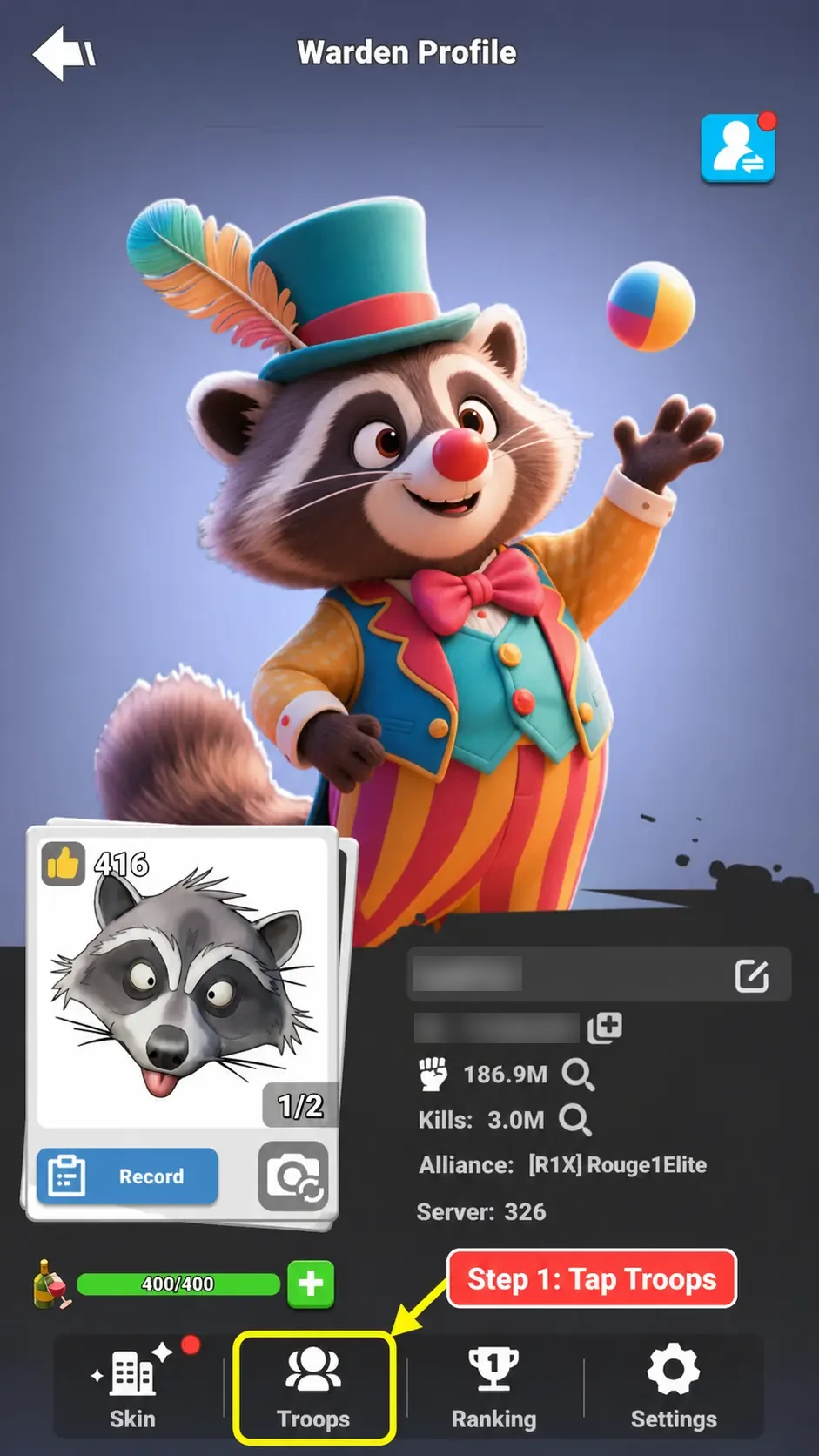
Tap your profile picture in the top-left of the screen. This will open your character information page.
Then tap Troops at the bottom of the screen.
Guides · Step-by-step guide
Save a hero and troop ratio preset for faster event and rally setup.
Before you begin
Step 1
Tap your profile picture in the top-left of the screen. This will open your character information page.
Then tap Troops at the bottom of the screen.
Step 2
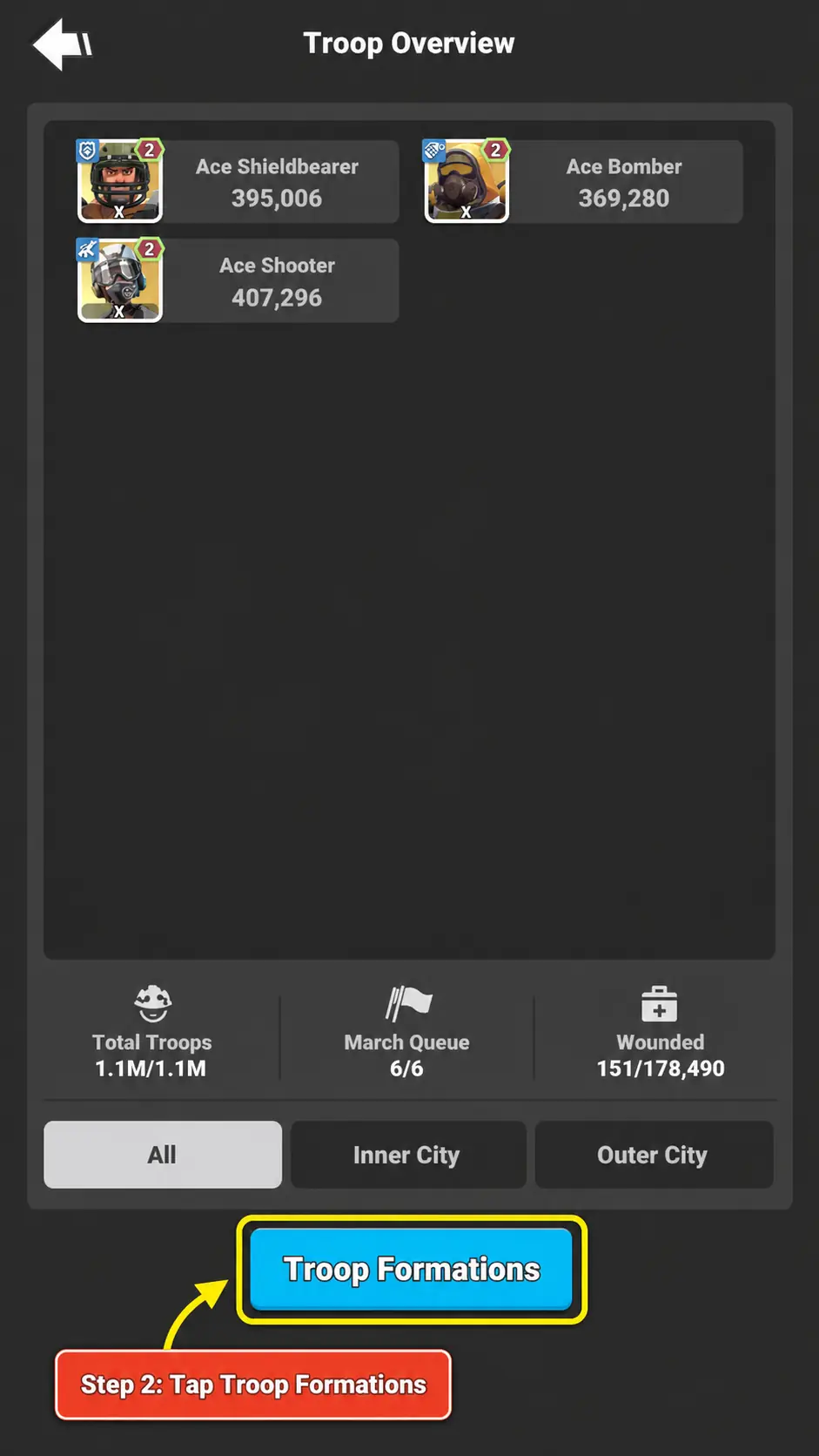
The next page will show how many troops you currently have.
Tap the Troop Formations button at the bottom of the screen.
Step 3
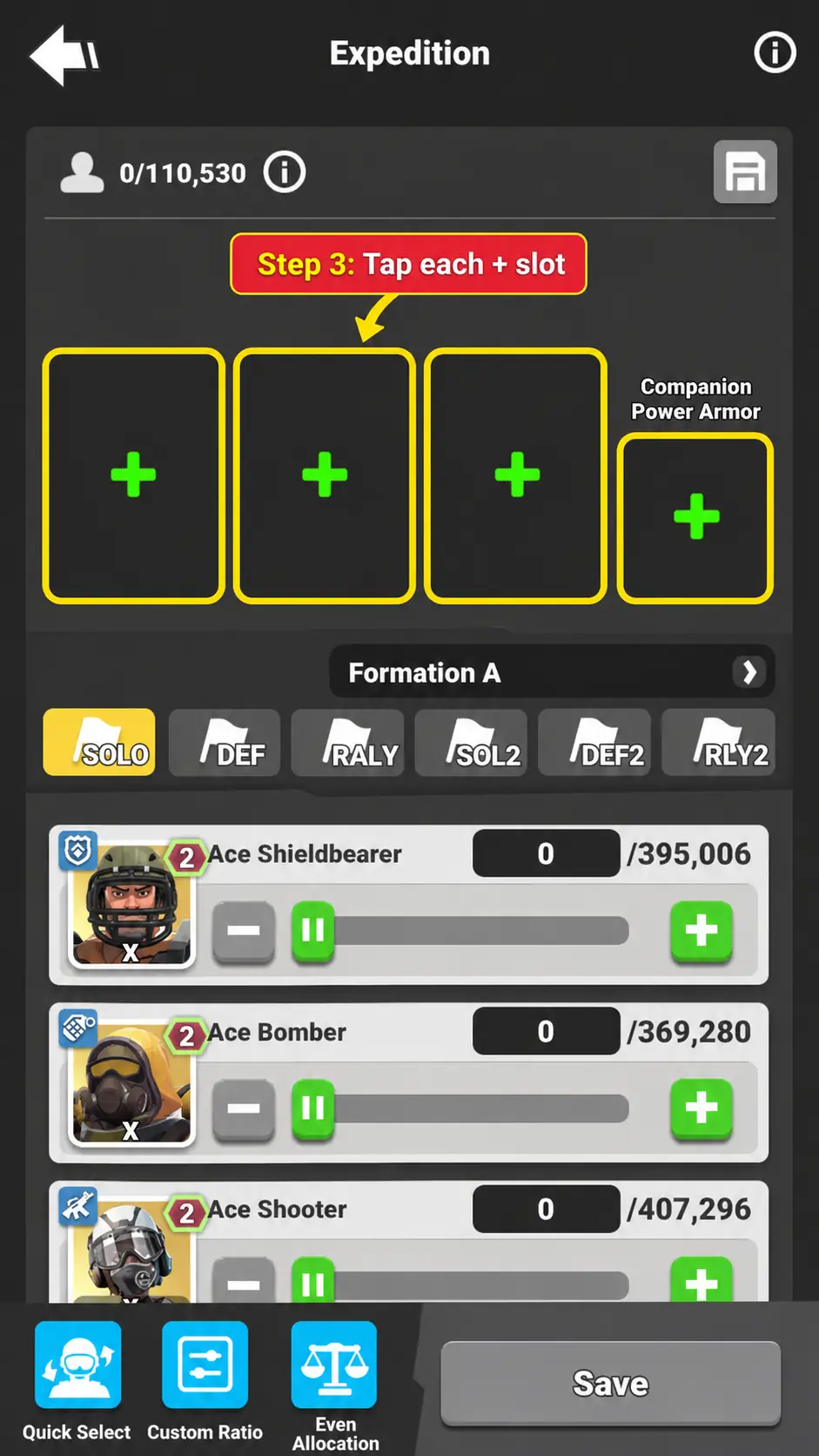
This page shows your current troop formations, if you already have any set up.
Under Formation A, you will see six formation slots. The names of these slots may be different from the example.
Tap each empty slot with the + icon, then choose the heroes and robot you want to use in your formation.
Step 4
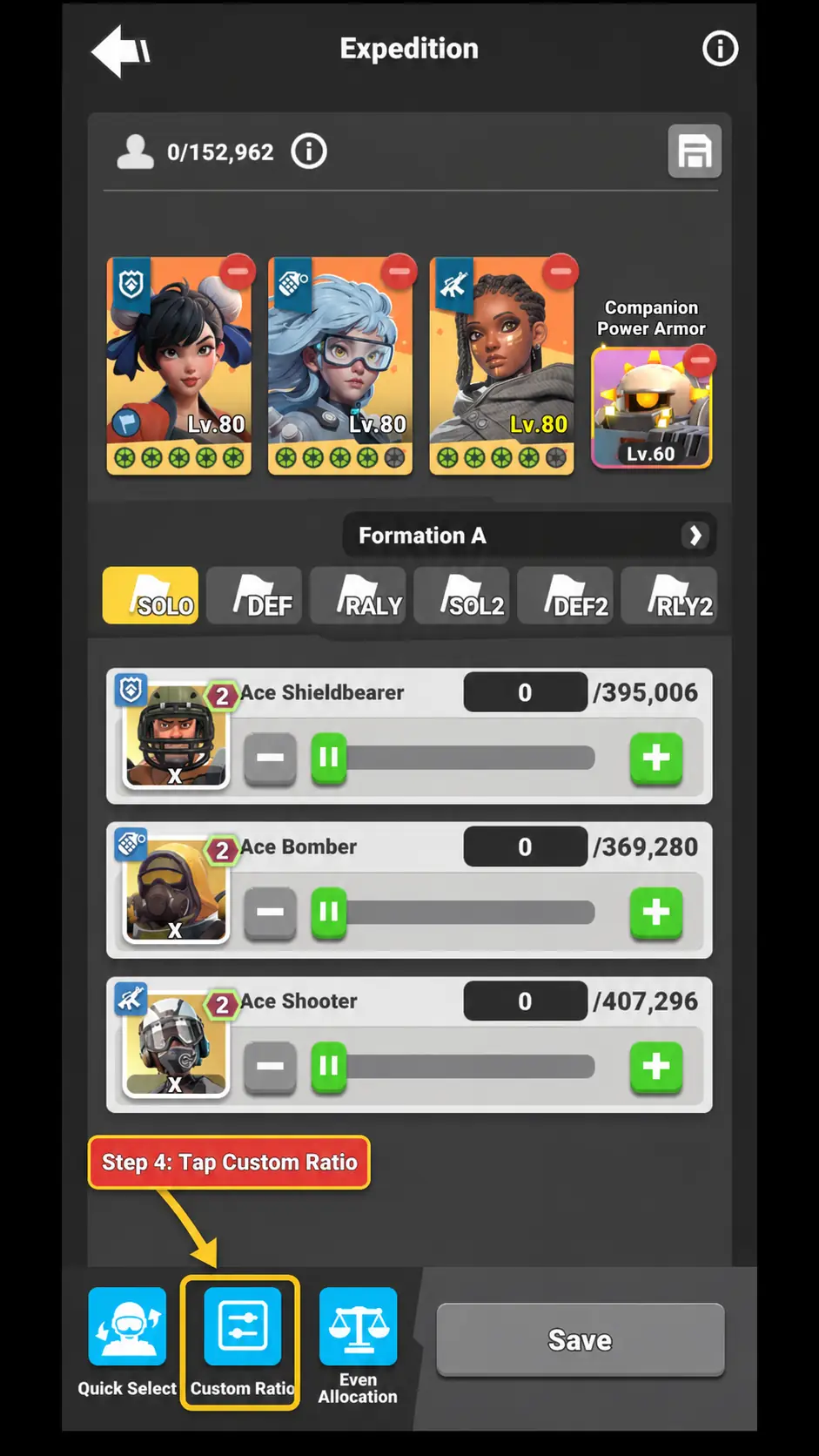
Once you have selected your heroes and robot, tap the Custom Ratio button at the bottom of the screen.
Step 5
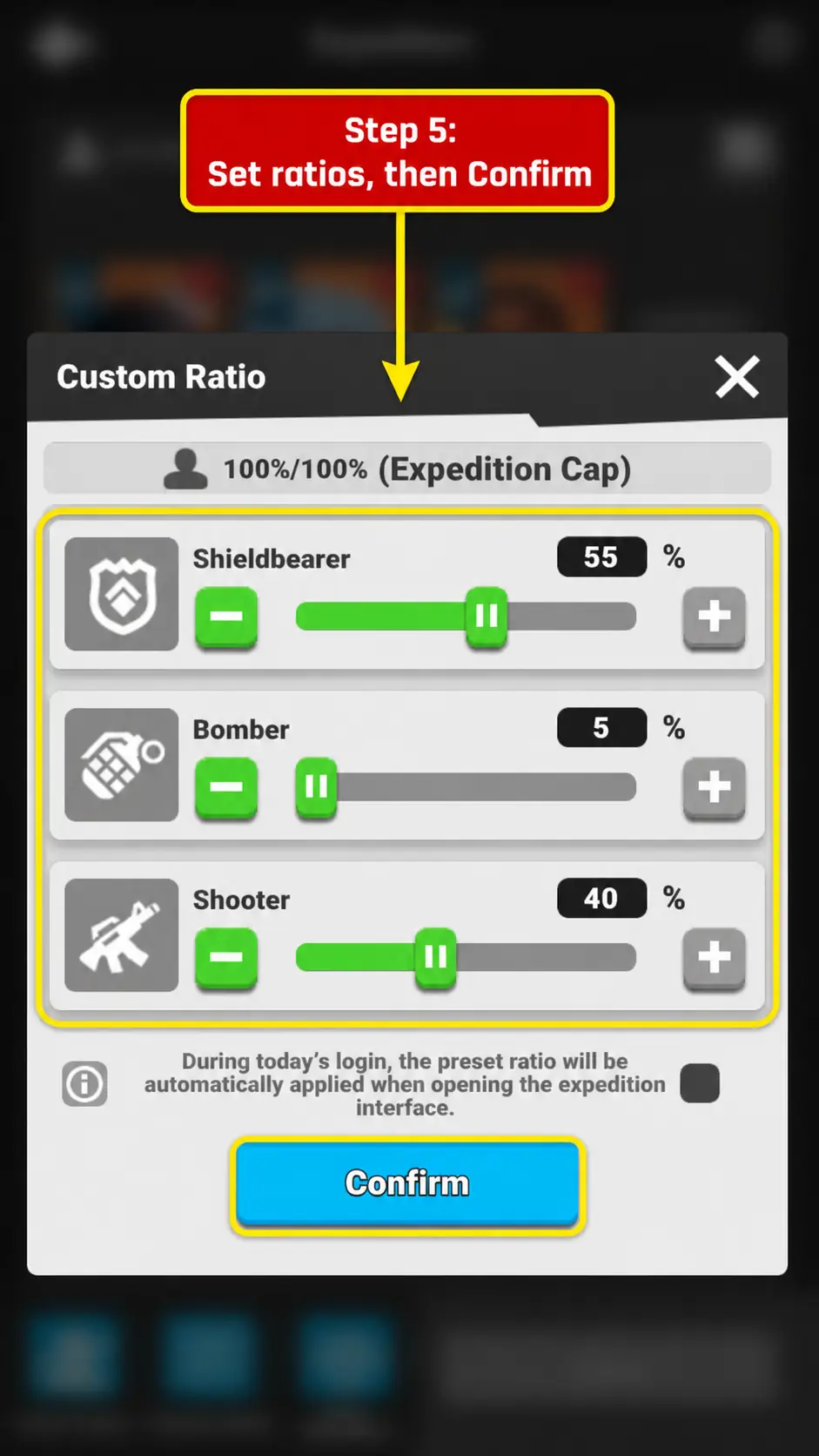
Use the sliders, or enter the percentage numbers, to choose how many Shieldbearers, Bombers, and Shooters you want to use in your formation.
Example ratio: 55% Shieldbearers, 5% Bombers, 40% Shooters.
Once you are happy with your choice, tap Confirm.
Step 6
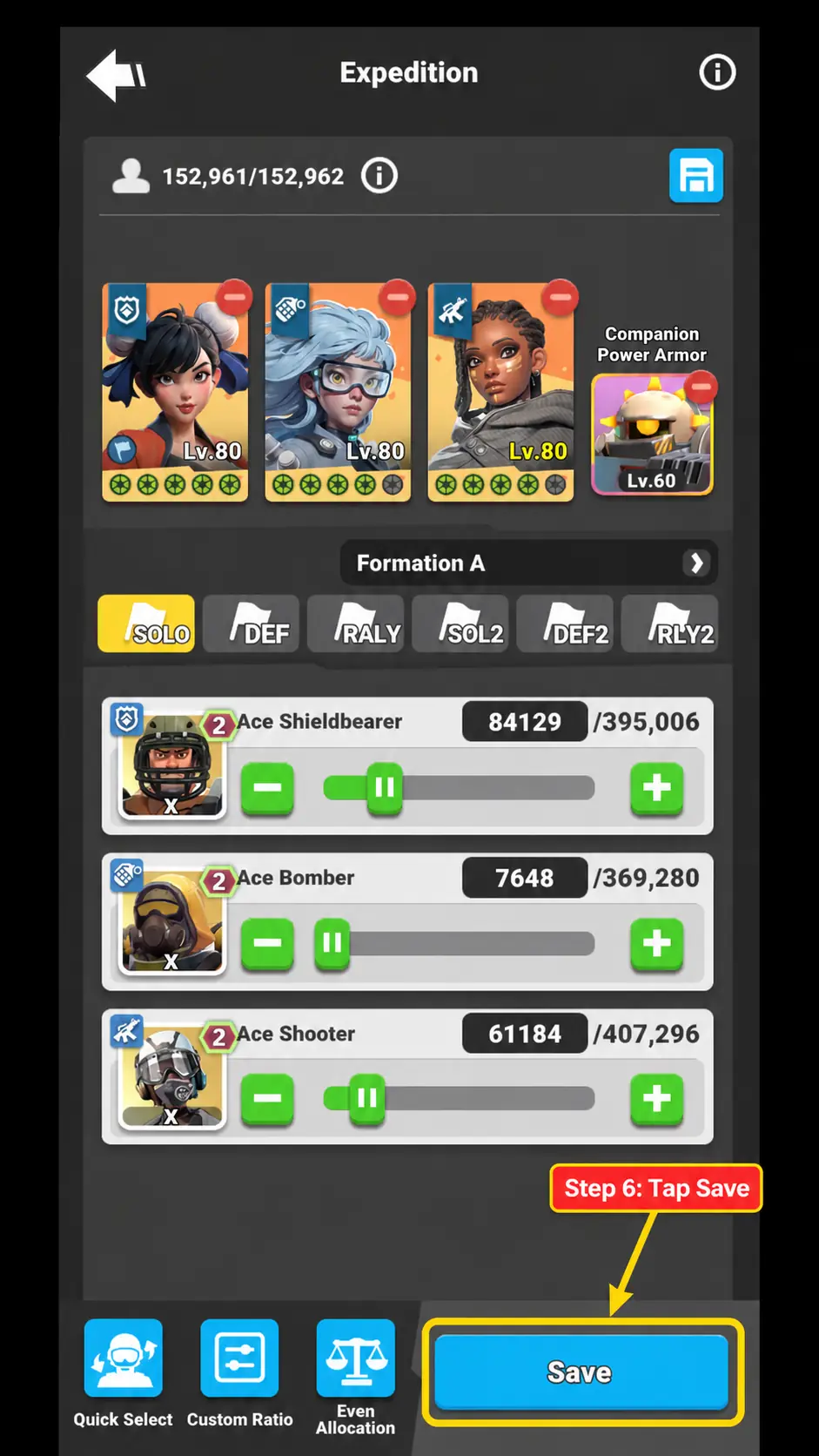
You will now see that the number of troops has been updated based on the percentage ratio you selected.
Once you are happy with the setup, tap Save at the bottom-right of the screen.
Step 7
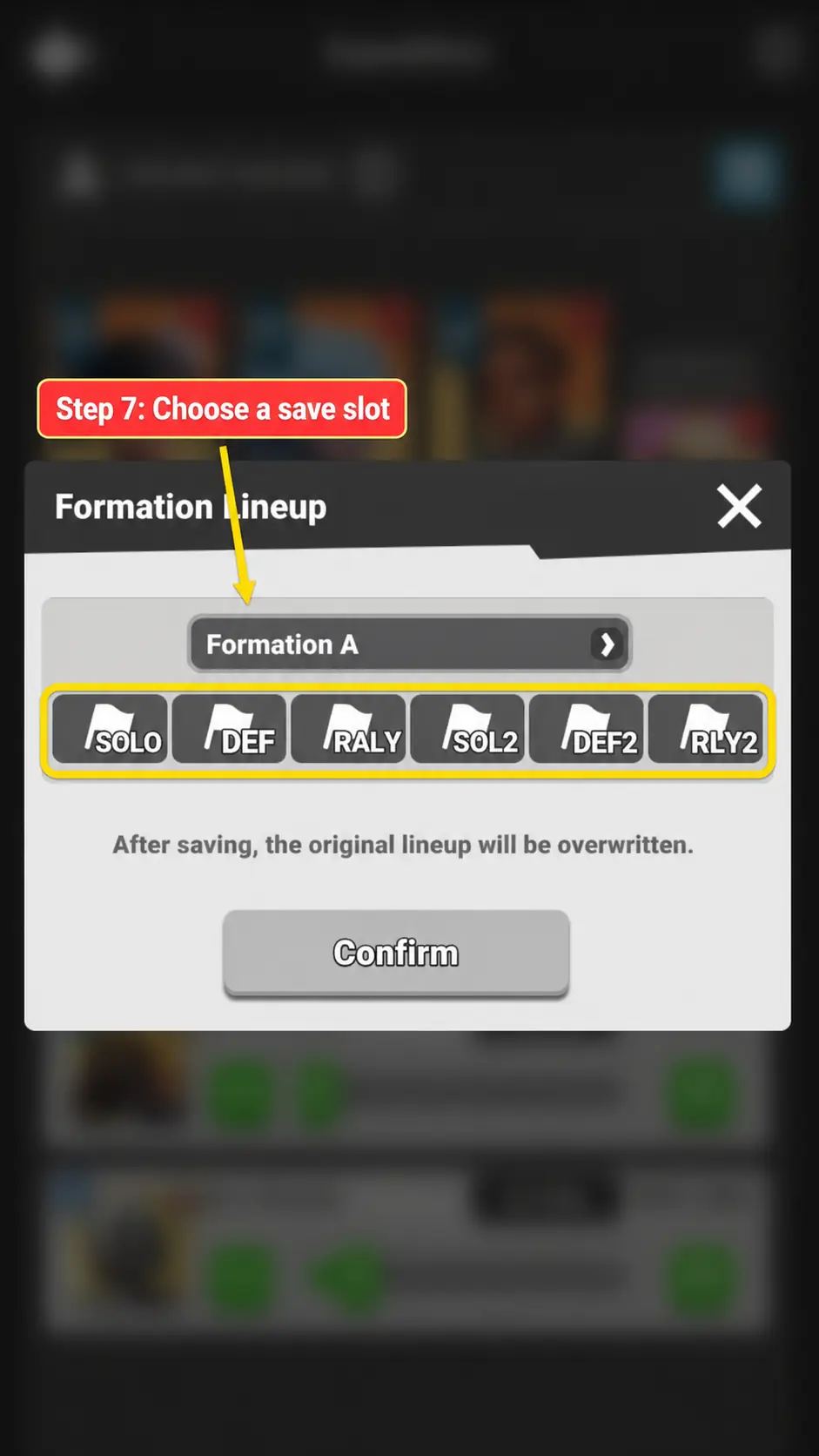
Tap one of the six formation slots under Formation A.
This will be the saved location for your formation.
Step 8
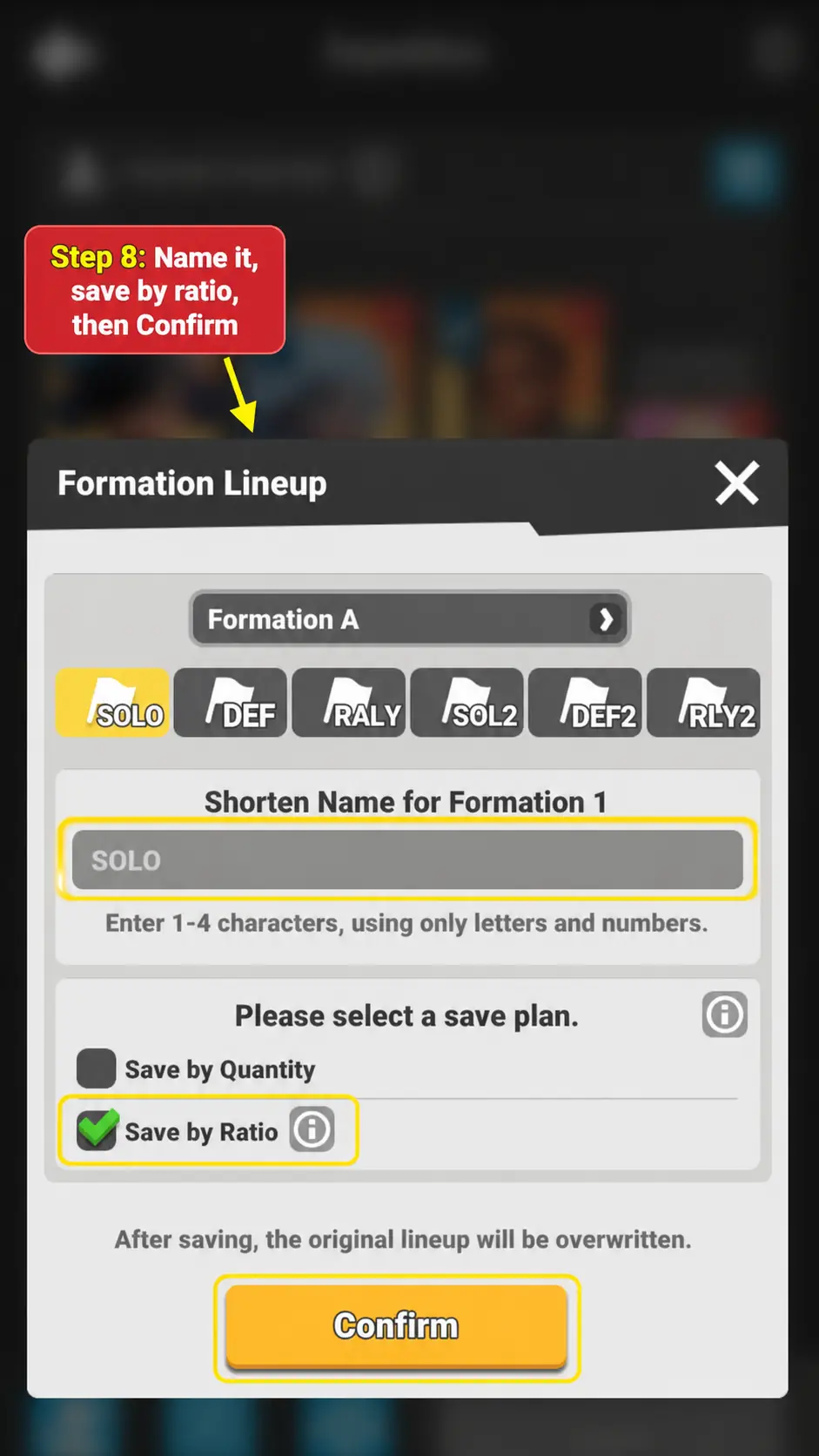
You will now be asked to give the formation a short name.
Enter a name of your choice.
It is best to save your formation by ratio, so make sure the Save by Ratio checkbox is ticked.
Tap Confirm to save your formation.